


Port Forwarding and Network Address Translation
What is Port Forwarding and why is it important?
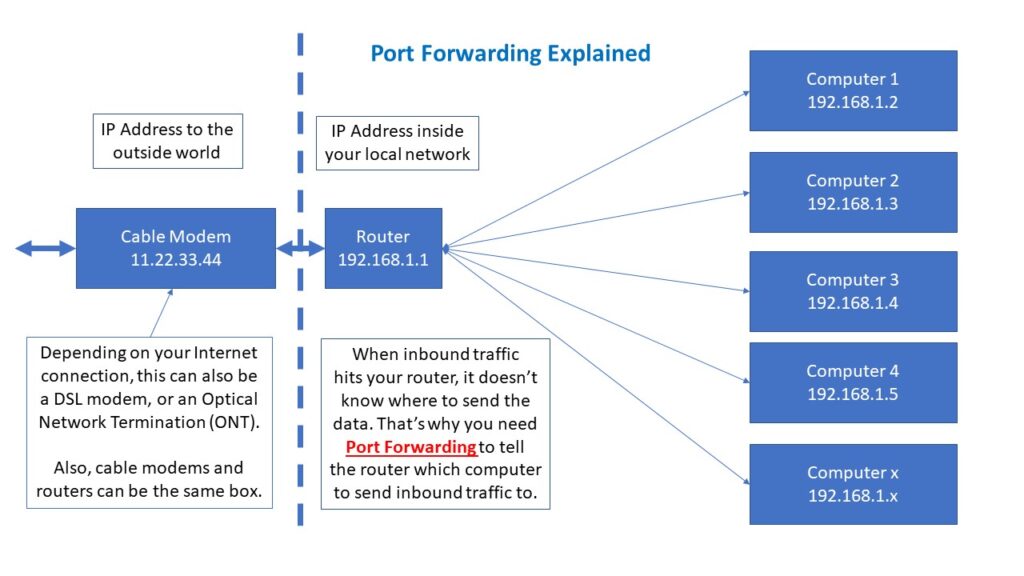
So when your users want to connect to your BBS, they either have your domain name (which gets translated to an IP address) or just an IP address. Either way their connection gets routed to your Cable/DSL/ONT/Satellite connection. Then the connection goes to a router. But there is no way the router knows where to send traffic after that. Unless you’ve programmed your router with Port Forwarding, the connection has no where to go and gets dropped. The router acts like a firewall since someone asked for a connection and the router said “nope, no connection available, go away!”
Outside (Public) IP Addresses
Most home computer networks have two sets of IP addresses. The first set is the “outside” or public address. This is what other websites know how to deliver content to you. You go to a web page, it sends the page to you. But how does it know where to send it to? Your public IP address. In a traditional world, the source (your users) has a single IP address and you (the destination) has a single IP address. These need to be “routable” meaning that nothing is in between that uses something called NAT or Network Address Translation (more on that later). But in a perfect world, both the source and destination IP addresses are routable. You need a routable IP addresses in order for your users to find you. If your ISP uses something called CGNAT (Carrier Grade NAT), sadly users can’t connect to your computer (without some extra help that’s beyond the scope of this article).
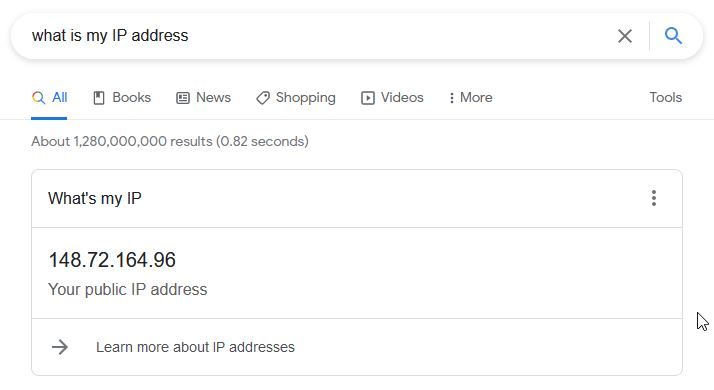
So assuming your IP addresses is routable, how do you find out what your public IP address is to the outside world? It’s as simple as a Google search. Just type in “what is my IP address” in the search block and your routable IP address shows up. If your ISP has a routable IP addresses all the way to your home (cable/DSL modem, etc.), this is the unique IP address where people can find you and your BBS.
 Inside IP Addresses
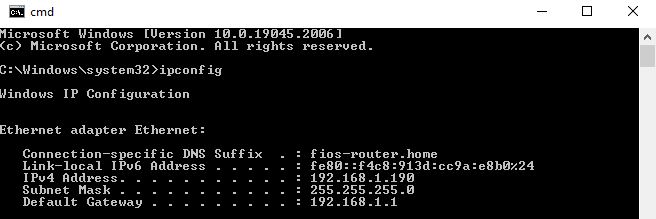
So now you know your public IP address, but what about your private IP address? Each computer in your LAN has its own unique IP address. Typically the IP address range inside of your internal LAN is in the range of 192.168.1.x (x from 0 to 255). These numbers may vary with your system, so don’t be surprised if they don’t line up exactly. (For example, sometimes they’re in the format of 10.10.x.x)
To find out what your IP address is, open up a Command Line (Windows) or a shell (Unix/Linux) and type in one of the following command:
For Windows, type in ipconfig
For most Unix systems (including Linux), type in ifconfig
There you’ll see one of more network interfaces, and the IP addresses associated with them. Use the IP address that corresponds to your connection to your router and the outside world.
Setting Up Port Forwarding
So now you know what your “inside” (private) IP addresses, you need to understand how to implement Port Forwarding at your router and determine what ports get forward to the computer where your BBS is hosted inside your LAN. But what ports should you forward? For the sake of protection, you should only forward the ports that you absolutely need and block the rest. The actual ports you need forwarded is dependent on your actual application, but at the bare minimum if your Telnet BBS is using the default Telnet port of Port 23, then that would be the port you would forward. The following table shows common Internet ports that are typically forwarded. Again, only use the ones you absolutely need.
For your router, you will need to consult the instructions for your particular brand and model. Most of them are fairly similar – basically what port to forward and which IP address to forward it to. Again, this depends on your particular router.
Common Port Numbers
Port Number  Function
20           File Transfer Protocol (data)
21           File Transfer Protocol (control)
22           Secure Shell (SSH)
23           Telnet (default port)
25           SMTP Mail
80           Hypertext Protocol (non secure)
110          POP3 Mail
443          Hypertext Protocol (secure)
6667         Internet Relay Chat (IRC)
24554        Binkp (Fidonet and other FTNs)
2002         Telnet for Trade Wars Game Server
2323         Telnet (common alternate port)
8888         Telnet for Enigma BBS
513          Remote Login (Rlogin)
Testing Your Port Forwarding Setup
Once you’re done, you now need to test your connection. There are a number of cyber assessment tools to self test for vulnerabilities. (Technically having ANY open ports is a potential vulnerability, but as long as you understand what you’re doing and control where the forwarding is going, it’s manageable and don’t concern yourself too much about it!)
One cyber assessment tool is called SHIELDS UP from GRC. This way you can determine if your port forwarding is working correctly.
Go to this URL to access the Shields Up utility: https://www.grc.com/shieldsup
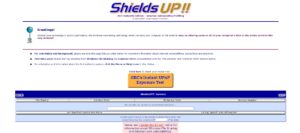
Use the various lookup tools such as Common Ports, Custom Probe, or All Service Ports as necessary.
Again, note that you actually want this test to FAIL (the exact opposite of what this test was designed to do) since you will have open ports (again, use judiciously). So if you see this after your test, port forwarding was not implemented properly
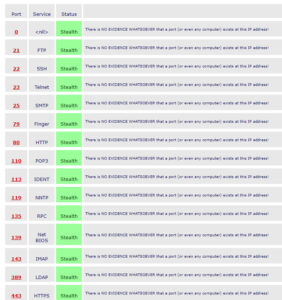
If you see all green (ports listed as STEALTH), then you don’t have port forwarding set up correctly.
Also, if you have your ports set to CLOSED, that means that the port forwarding appears to have been set up correctly, but there isn’t an application on your end to actually answer a connection request.
If your ports are set to OPEN, that means that the port forwarding is working correctly and the application on your end answered the request. So at this point you would be fairly confident that it is set up correctly and is working as it should. (Again, it will say FAILED, but for you it means SUCCESS.)
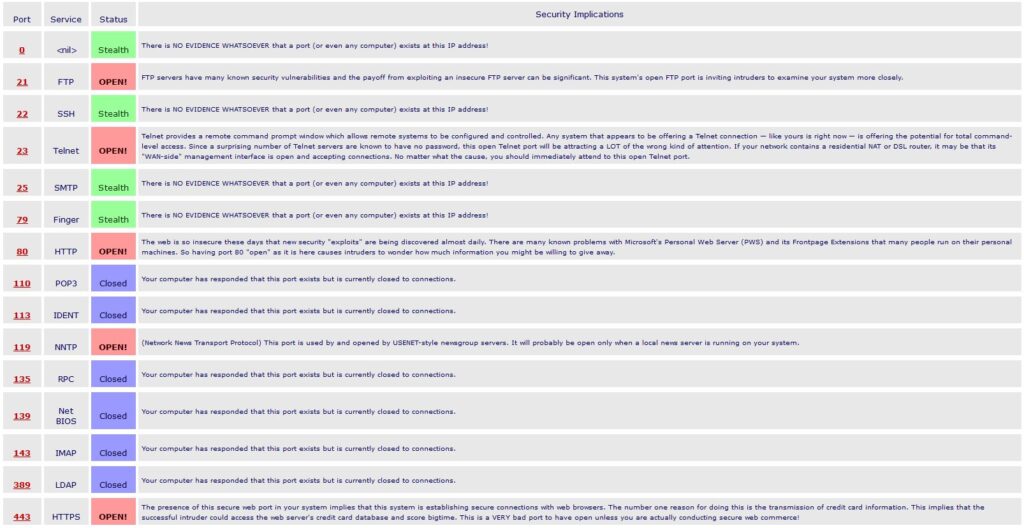
That’s pretty much it. Set it up and once you’ve verified it works, then you’re good to go.

Visit our Social Media Links